Part 3 — Git and GitHub
Keeping your work, and getting it back
Git answers a question that you will ask at some point: what did this look like before I broke it?
Each time this site is built, everything before the GitHub section runs on a real repository. Git works completely on your own computer. It uses the internet only when you connect to a server.
The problem
You have analysis.py. You change it. It stops working, and you cannot remember what you changed.
Many people then create analysis_v2.py, then analysis_final.py, then analysis_final_REALLY.py. The result is a folder where nobody can tell which file produced which result.
Git replaces all of this with one directory that remembers every version of every file in it, and who changed what, when, and why.
Setting up
Git saves a name and an email address with every change. So tell Git once who you are:
git config --global user.name "Your Name"
git config --global user.email "[email protected]"
--global means “for every repository on this computer”, so you do this only once.
git config --global init.defaultBranch mainThis sets the name of the first branch. main is the usual name today.
A repository
A repository (dt. Repositorium, usually only repo) is a directory that Git watches. Create one:
mkdir myanalysis
cd myanalysis
git init
Initialized empty Git repository in /home/user1/myanalysis/.git/This created a hidden .git directory. This directory is the repository: the whole history is stored there. If you delete it, you have ordinary files again.
Now create a file for Git to track:
echo "print('hello')" > analysis.py
git status
Git reports analysis.py as untracked: Git can see the file, but does not watch it yet.
The three steps
In Git, saving your work has three steps, not one. This is intended.
git add analysis.py
git commit -m "Add the analysis script"
[main (root-commit) 9c1f2ab] Add the analysis script
1 file changed, 1 insertion(+)| step | what it means |
|---|---|
| edit | change files as usual |
git add |
choose what goes into the next snapshot (“staging”) |
git commit |
take the snapshot, with a message saying why |
The middle step looks unnecessary, but it is useful: you can commit some of your changes and leave the rest for later. So two unrelated fixes become two commits with two clear messages, not one commit called “stuff”.
That person is you, in six months, when you try to find where something broke.
“Fix bug” tells the reader nothing. “Fix the off-by-one error that dropped the last row” takes ten seconds more, and it helps. Say why, not what: the diff already shows what changed.
Seeing what happened
echo "print('goodbye')" >> analysis.py
git status --short
M analysis.pyM means modified. To see the change itself:
git diff@@ -1 +1,2 @@
print('hello')
+print('goodbye')Lines with + were added, and lines with - were removed. Commit the change:
git add analysis.py
git commit -m "Say goodbye as well as hello"
git log --oneline
4d5e6f7 Say goodbye as well as hello
9c1f2ab Add the analysis scriptThis list of versions is the reason to use Git.
Git is built for text: code, scripts, notes, configuration. It does not work well with large binary files. Git keeps every version forever, so if you commit a 2 GB dataset once, it stays in the repository permanently, even after you delete it.
Keep data outside the repository, or list it in a file called .gitignore:
printf "results/\n*.csv\n" > .gitignore
git add .gitignore
git commit -m "Ignore results and data files"
Now Git no longer offers to track these files. A repository should contain everything that is needed to reproduce the results — including pixi.toml and pixi.lock from Part 2 — but not the results themselves.
Going back
This is the reason for everything above. To discard changes that you have not committed:
echo "print('a terrible mistake')" >> analysis.py
git restore analysis.py
git diff
git diff prints nothing: the file is back in its last committed state, and the mistake is gone.
To look at an old version without changing anything:
git show HEAD~1:analysis.pyprint('hello')HEAD is where you are now, and HEAD~1 is one commit before it. Nothing was changed: Git only read an old version from its history.
Branches
A branch is a separate line of work. On a branch, you can try something risky without changing what already works:
git switch -c experiment
echo "print('a new idea')" >> analysis.py
git add analysis.py
git commit -m "Try a new idea"
-c creates the branch and moves you to it. To see which branches exist, and which one you are on:
git branch experiment
* mainThe * marks where you are. The first line of git status says the same. This is why you should read git status before you do anything else.
Switch back:
git switch main
cat analysis.py
print('hello')
print('goodbye')The new idea is not here. It is on the branch experiment, unchanged. To keep it:
git merge experiment
cat analysis.py
print('hello')
print('goodbye')
print('a new idea')Or, to drop it, do not merge it.
git log --oneline --graph --allMerge conflicts
If the same lines changed on both branches, Git cannot decide which version you want, and it tells you so. This is not rare. Beginners meet it early, especially in a small team where two people edit the same file in the same week.
A conflict needs two branches that disagree on purpose. A build script should not create that on every run. So this example is shown, but not run automatically. Every command and every line of output below is real: we ran these exact commands once and copied the result.
Two branches, each changing the same line differently:
git switch -c change-greeting-a
printf "print('hi there')\nprint('goodbye')\nprint('a new idea')\n" > analysis.py
git add analysis.py
git commit -m "Change the greeting to 'hi there'"

git switch main
printf "print('hey!')\nprint('goodbye')\nprint('a new idea')\n" > analysis.py
git add analysis.py
git commit -m "Change the greeting to 'hey!'"
Merge them:
git merge change-greeting-aAuto-merging analysis.py
CONFLICT (content): Merge conflict in analysis.py
Automatic merge failed; fix conflicts and then commit the result.Git could not decide, so it stopped and put both versions in the file:
cat analysis.py<<<<<<< HEAD
print('hey!')
=======
print('hi there')
>>>>>>> change-greeting-a
print('goodbye')
print('a new idea')Everything above ======= comes from your current branch (HEAD). Everything below it comes from the branch that you are merging, and the marker line names that branch. Only the lines that disagree are marked like this. The rest of the file is unchanged.
Edit the file so that it says what you want, and delete all three marker lines. <<<<<<<, ======= and >>>>>>> are not part of your file: Git added them only to show you the conflict:
printf "print('hey there')\nprint('goodbye')\nprint('a new idea')\n" > analysis.py
git add analysis.py
git commit -m "Resolve the greeting conflict"
This is all that a conflict is: Git does not guess, and you tell it what you meant. git add marks the file as resolved, and git commit finishes the merge. These are the same two steps as for any other change. A conflict does not mean that anything is broken.
git status orients you mid-conflict too
If you get lost during a conflict, git status names the file with the conflict and tells you what to do next. Here, as everywhere in Git, read git status first.
GitHub
Everything so far happened on your own computer. GitHub is a website that stores Git repositories. With it, you can keep a backup, work on more than one computer, and show your work to other people. GitHub is not Git. It is one of several such websites; GitLab is another one.
If your practical uses a shared repository, at least one person in the team needs a GitHub account, so that the repository can exist. In practice everyone needs one: each of you pushes your own commits, and every commit is linked to the account that made it.
An account is free, and you can create one in a minute: github.com/join. Do this before you need it, not during a session. See also “Make a GitHub profile, and treat it as one” below: an account is more than a requirement for the practical.
Figure 1 shows everything on this page in one picture. It also adds the part that GitHub is for: a remote repository, which is a copy of the same history on a server instead of on your computer.
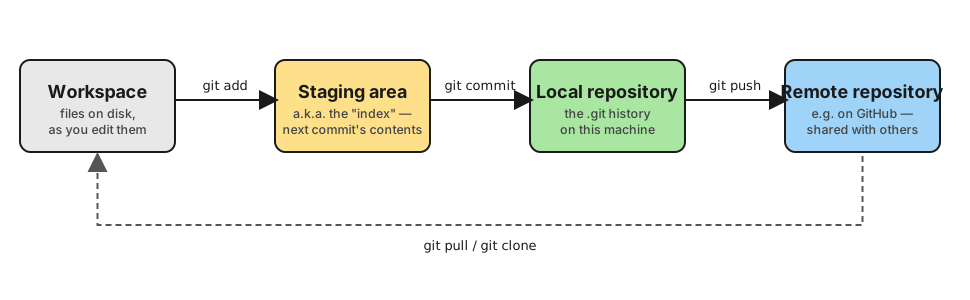
git push and git pull are the two new commands. git push sends your local history to the remote repository. git pull gets what changed there. git clone is what you use the first time, instead of git pull: it does not update an existing local repository, but creates a new one by copying the whole history of the remote repository.
Unlike the rest of this page, these commands need an account, a login and a real server. So they are shown, but not run automatically.
Create an empty repository on the GitHub website. Then connect your local repository to it:
git remote add origin https://github.com/yourname/myanalysis.git
git push -u origin main
origin is the usual name for “the server that this repository came from”. After the first push, one word sends later commits:
git pushTo get changes that were made somewhere else:
git pullTo start from someone else’s repository instead:
git clone https://github.com/someone/theirproject.git
cd theirproject
clone copies the whole history, not only the current files. So you get every version, and you can work without the internet immediately.
The everyday loop
git pull                          # get what others changed
# ... do some work ...
git add .
git commit -m "Describe what you did"
git push # send it backWhen it goes wrong
“Please tell me who you are.” You skipped the git config step above.
You committed something by mistake. If you have not pushed it, git reset --soft HEAD~1 undoes the commit and keeps the changes. If you have pushed it — especially a password or a key — treat it as public. The fix is to change the password or key, not to change the history. If you remove a commit from a public repository, everyone who already has a copy still has it.
git push is rejected. Someone else pushed first. Run git pull, resolve any conflicts, then push again.
You are lost. git status almost always tells you where you are and what you should do next. Read it before you do anything that you cannot undo.
If you search the internet for a Git error, you will almost always find git reset --hard and git push --force. Both can delete work permanently, and both are usually the wrong answer to a beginner’s problem.
git status and git log never delete anything. Start with them.
What you should be able to do now
Where to go next
Part 4 — Files you will meet covers the formats that you will meet together with Git: Markdown for the README of your repository, JSON for the output of tools, and table formats.